Migrating from an Existing Push Provider
This guide covers how to migrate from an existing web push notification system to OCM Pulse. If you already have push notifications running on your site with another provider (OneSignal, Firebase, custom solution, etc.), follow these steps for a smooth transition.
Overview
When migrating, your existing users already have notification permission granted. The OCM Pulse SDK will automatically detect this and subscribe them without showing any prompts. However, push subscriptions are cryptographically tied to the VAPID key of the provider that created them, so existing subscriptions cannot be transferred. Each user will get a fresh subscription on their next visit.
What carries over:
- Browser notification permission (granted/denied state)
What does not carry over:
- Push subscription endpoints (tied to old provider's VAPID key)
- Subscriber identity / user IDs
- Category preferences or tags
- Subscriber history and analytics
Prerequisites
- An OCM Pulse app created and configured
- Web Push channel set up (see Setting Up Web Push)
- Site domain configured in your OCM Pulse app settings — the SDK makes API calls to the OCM backend, which validates the requesting domain. If your site's domain is not configured, all subscribe/update requests will be rejected.
- Access to your website's code
- HTTPS enabled on your website

Running WordPress? The WordPress Plugin replaces Steps 2–5 below (removing old code, handling the old service worker, uploading the OCM worker, embedding the SDK) — connect through the plugin instead and skip to What Happens After Migration.
Step 1: Stop Sending from Your Old Provider
Before making any code changes, stop sending push notifications from your old provider. Once you replace the service worker, your old provider's push payloads will not be handled correctly (different payload format). Any pushes sent during the transition could result in silent failures or malformed notifications.
Step 2: Remove Your Old Provider's Code
Remove all scripts, SDK tags, and initialization code related to your old push provider from your website. This includes:
- Script tags loading the old SDK
- Initialization/configuration code
- Any event listeners or callbacks tied to the old system
Do not remove or unregister the old service worker manually yet (Step 3 handles this).
Step 3: Handle the Old Service Worker
This is the most important step. Your old provider registered a service worker in your users' browsers. Even after you remove the old code from your site, that registration persists in every user's browser until it is explicitly replaced or unregistered.
Option A: Same Path (Recommended)
If you can place the OCM service worker file at the same path as your old service worker, the browser will automatically replace the old one with the new one. No extra cleanup code is needed.
For example, if your old service worker was at /sw.js, configure the OCM SDK to use that path:
<script>
  window.__OCM_PUSH_OVERRIDES__ = {
    service_worker_path: '/sw.js'
  };
</script>
<script src="https://your-ocm-server.com/sdk/YOUR-APP-ID.js" defer></script>
Then upload ocm-push-worker.js to your site root but name it sw.js (or whatever your old path was).
Option B: Different Path
If you want to use the default OCM service worker path (/ocm-push-worker.js), add a cleanup snippet before the OCM SDK script to unregister the old provider's service worker.
Important: Only target your old provider's specific service worker. Do not unregister all non-OCM workers, as your site may use other service workers for unrelated purposes (PWA offline support, caching, analytics, etc.).
<script>
  // Replace 'old-provider-sw.js' with your old provider's actual service worker filename.
  // See the "Common Old Service Worker Paths" table below for typical filenames.
  if ('serviceWorker' in navigator) {
    navigator.serviceWorker.getRegistrations().then(function(registrations) {
      registrations.forEach(function(registration) {
        if (registration.active && registration.active.scriptURL.includes('old-provider-sw.js')) {
          registration.unregister();
        }
      });
    });
  }
</script>
<script src="https://your-ocm-server.com/sdk/YOUR-APP-ID.js" defer></script>
For example, if migrating from OneSignal:
registration.active.scriptURL.includes('OneSignalSDKWorker')
Or from Firebase:
registration.active.scriptURL.includes('firebase-messaging-sw')
Common Old Service Worker Paths
| Provider | Typical SW Path |
|---|---|
| OneSignal | /OneSignalSDKWorker.js |
| Firebase / FCM | /firebase-messaging-sw.js |
| PushEngage | /service-worker.js |
| Custom | Varies (/sw.js, /push-sw.js, etc.) |
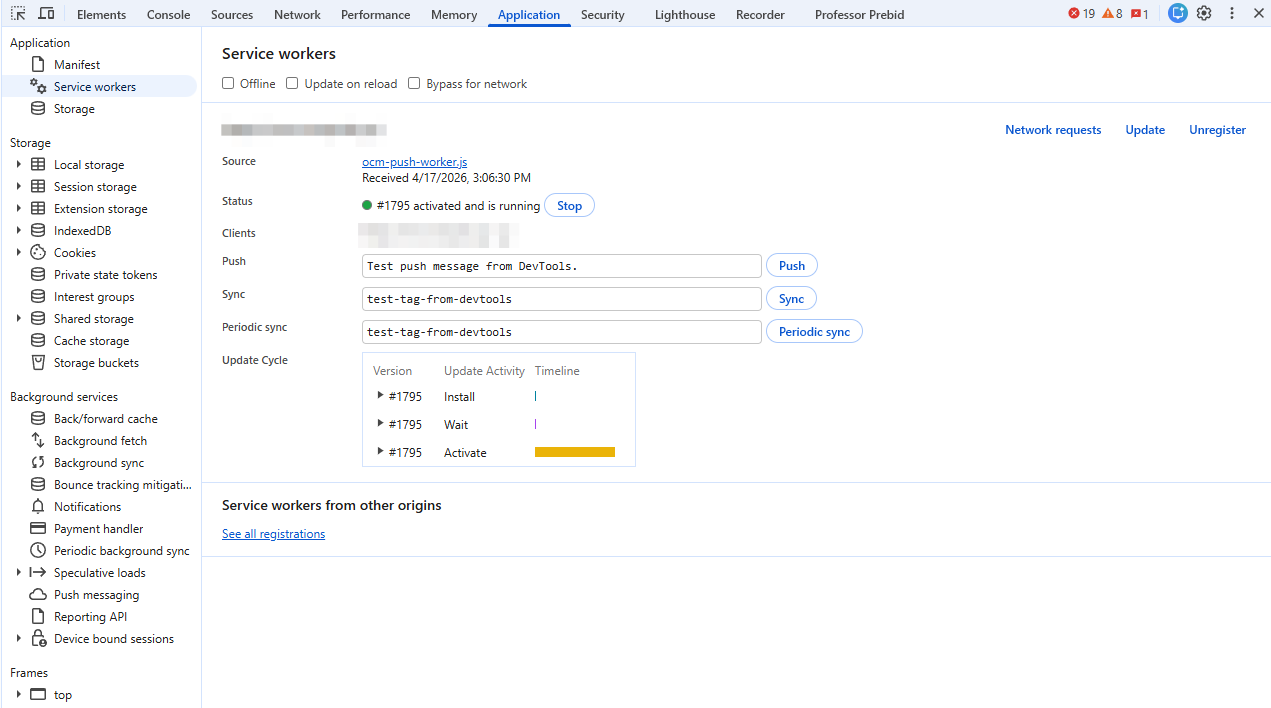
Check your browser DevTools (Application > Service Workers) to find the exact path of your current service worker.
Step 4: Upload the OCM Service Worker
If you used Option A in Step 3, you already handled this — just make sure the file is in place with the correct name. Otherwise, upload ocm-push-worker.js to your website's root directory.
Verify it is accessible: https://yoursite.com/your-service-worker-path.js should return the JavaScript file (not an HTML error page). The path should match what you configured in Step 3 (e.g., /ocm-push-worker.js for Option B, or your custom path for Option A).
Important:
- The file must be served from the same domain as your website (not from a CDN or different origin)
- The file must be at the root level (
/) to control the entire site scope - A service worker at
/subfolder/ocm-push-worker.jscan only control pages under/subfolder/
Step 5: Embed the OCM SDK Script
Add the OCM SDK script to your website:
<script src="https://your-ocm-server.com/sdk/YOUR-APP-ID.js" defer></script>
See Setting Up Web Push for platform-specific installation instructions (WordPress, Shopify, React, Vue, etc.).
What Happens After Migration
For Users Who Already Granted Permission
- User visits your site
- OCM SDK detects
Notification.permission === "granted"and skips the prompt - SDK registers the OCM service worker (replaces old one if same scope)
- SDK detects a migration scenario — new OCM user but an existing push subscription is present from the old provider
- SDK automatically unsubscribes the old subscription (tied to the old provider's VAPID key) and creates a fresh one using the OCM VAPID key
- The new subscription is registered on the OCM backend
- Everything works from this point forward
This re-subscription happens transparently on the user's first visit after migration. The user does not see any prompts or interruptions.
For Users Who Previously Denied Permission
These users have Notification.permission === "denied" in their browser. The OCM SDK cannot override this. These users will not be prompted again unless they manually reset notification permissions in their browser settings.
For New Users
New visitors go through the standard OCM subscription flow (prompt, permission, subscribe) as if there was no previous provider.
Migration Timeline
Migration happens per-user on their next visit, not all at once. Your subscriber count will grow gradually as users return to your site. Expect the bulk of migration to complete within 1-2 weeks depending on your traffic patterns.
Verification Checklist
After deploying the migration:
- Old provider's scripts are fully removed from your site
- OCM service worker is accessible at the correct path
- OCM SDK script loads without console errors
- Old service worker is replaced (check DevTools > Application > Service Workers)
- New subscriptions appear in the OCM dashboard
- Test notification is received successfully
- No duplicate service worker registrations
Troubleshooting
Subscribers Not Appearing in Dashboard
- Check that the service worker file is accessible at the configured path
- Verify the app ID in the SDK script URL is correct
- Verify your site's domain is configured in the OCM Pulse app settings — if the domain doesn't match, the backend will reject API requests (check for CORS errors in the browser console)
- Open DevTools console and look for SDK errors
Duplicate Notifications
This means the old service worker is still active alongside the OCM one. Ensure:
- The old provider's backend has stopped sending
- The old service worker is unregistered (see Step 3, Option B)
- Both workers are not registered at different scopes
Service Worker Not Updating
Browsers cache service workers and check for updates periodically (every 24 hours). To force an update during testing:
- Open DevTools > Application > Service Workers
- Check "Update on reload"
- Refresh the page
Permission Shows as "Denied"
The user previously blocked notifications. They must manually reset this:
- Chrome: Click the lock icon in the address bar > Site settings > Notifications > Reset
- Firefox: Click the lock icon > Clear cookies and site data
- Safari: Safari > Settings > Websites > Notifications > Remove the site