- English
- Ελληνικά
Google Funding Choices – Consent Mode Setup Guide
Overview
If you are using Google Funding Choices as your Consent Management Platform (CMP), it is important to ensure that your website is configured correctly for Google Consent Mode v2.
A proper setup ensures that:
- data is collected only after user consent,
- duplicate tracking issues are avoided,
- and the website remains GDPR compliant.
1. Verify Existing dataLayer
Before adding the Consent Mode snippet, first check whether a dataLayer is already defined on the page or through Google Tag Manager (GTM).
In many implementations, the dataLayer is already initialized by existing Google tags, plugins, or integrations. It should not be declared multiple times.
If a dataLayer already exists, only add the Consent Mode snippet immediately after it.
Incorrect ordering or duplicate dataLayer declarations may affect the proper operation of Google tags and Consent Mode.
2. Add the Consent Mode Default Snippet
The Consent Mode default snippet must:
- be placed inside the
<head> - appear before any Google tags
- initialize all consent signals as
deniedby default
Example implementation:
<script>
  window.dataLayer = window.dataLayer || [];
  function gtag() {
    dataLayer.push(arguments);
  }
  gtag('consent', 'default', {
    'ad_storage': 'denied',
    'ad_user_data': 'denied',
    'ad_personalization': 'denied',
    'analytics_storage': 'denied',
    'wait_for_update': 500
  });
  gtag('js', new Date());
  gtag('config', 'G-XXXXXXXXXX');
</script>
All consent parameters are initialized as denied by default, meaning that no data is collected until the user provides consent.
Google Funding Choices automatically updates the consent state after the user interacts with the consent banner.
3. Important Considerations
Google Tag Manager (GTM)
If you are using Google Tag Manager, the Consent Mode implementation may already exist there instead of being hardcoded on the page.
In this case:
- verify that the Consent Mode tag exists,
- and ensure that it fires using the Consent Initialization trigger.
Do not implement the Consent Mode snippet both:
- directly in the page source, and
- inside GTM
at the same time.
This may result in duplicate consent initialization and unpredictable behavior.
Avoid Duplicate gtag('config')
Avoid triggering gtag('config') multiple times (for example from both hardcoded code and GTM simultaneously).
Duplicate configurations can cause:
- duplicate
page_viewevents, - inaccurate Google Analytics reporting,
- and inconsistent tracking behavior.
Universal Analytics (UA) Deprecation
If your website still uses Universal Analytics IDs (UA-XXXXX), they should be replaced with Google Analytics 4 IDs (G-XXXXX).
Universal Analytics has been officially discontinued by Google and no longer processes data.
Google Analytics 4 (GA4) is now required for proper support of:
- Consent Mode v2
- Google Funding Choices
- Modern Google Ads integrations
4. Google Ad Manager / Google AdSense Privacy & Messaging Setup
There is additional configuration required in the Privacy & Messaging settings to ensure Consent Mode v2 operates correctly.
Depending on where your GFC is implemented (Google Ad Manager / AdSense) you will have to go to the relevant account section and set the following:
Navigate to: Privacy & Messaging → European regulations → Settings.
Ad Partners
Open "Review your ad partners" → "Automatically include commonly used ad partners" → Edit.
Leave the existing entries and verify that these ad partners are present, add any missing ones, then select Confirm and Save.
Common ad partners list:
- ADYOULIKE SA
- Aniview LTD
- ConnectAd Demand GmbH
- FreeWheel
- GumGum, Inc
- ID5 Technology Ltd
- Madinad Magnite, Inc. (Carbon AI Limited)
- Magnite, Inc. (Outstream)
- Marfeel Solutions, SL
- Marfeel Solutions SL (Compass)
- Media.net
- Membrana Europe BV
- OCM
- Ogury
- Outbrain Inc.
- Sparteo
- Triple13 Ltd
Also add any third-party tools used on the site (for example: glomex GmbH, Phaistos Networks, iPROM, Disqus).
The remaining sections control how consent signals flow from Funding Choices into Google's advertising and analytics products, and which legal bases are available to ad partners when users decline some or all cookies. Configure each as described below.
Automatically add your bidders and mediation partners
- Enable auto-adding: On
In-Ad transparency controls section
- Show Ad Manager advertiser and targeting information: Off
- Ask buyers to only show ads with DSA transparency information on my site or app: Off
Check creatives for consent section
- Check reservation creatives for consent: Off
- Check RTB (real-time bidding) partner creatives for ad partner consent: Off
Legitimate Interest
Under the IAB TCF framework, some ad partners rely on a "legitimate interest" legal basis for certain processing — typically measurement, fraud prevention, and product improvement. Turning these controls on allows those partners to keep processing data on that basis when users have not granted full consent, protecting ad revenue while remaining GDPR compliant.
- Legitimate interest controls: On
- Enable by default: On
Consent Mode
These toggles tell Google to honor the Consent Mode v2 signals (ad_storage, ad_user_data, ad_personalization, analytics_storage) that you initialized in the page snippet. Without them, the signals are sent by your tags but ignored by Google, and ad/analytics behavior falls back to default consent handling.
- Enable consent mode for advertising purposes: On
- Enable consent mode for analytics purposes: On
Special feature 2 section
- Enable opt-in signal collection for IAB TCF special feature 2: Off
Consent syncing
If there's any app monetized add it here and follow the instructions
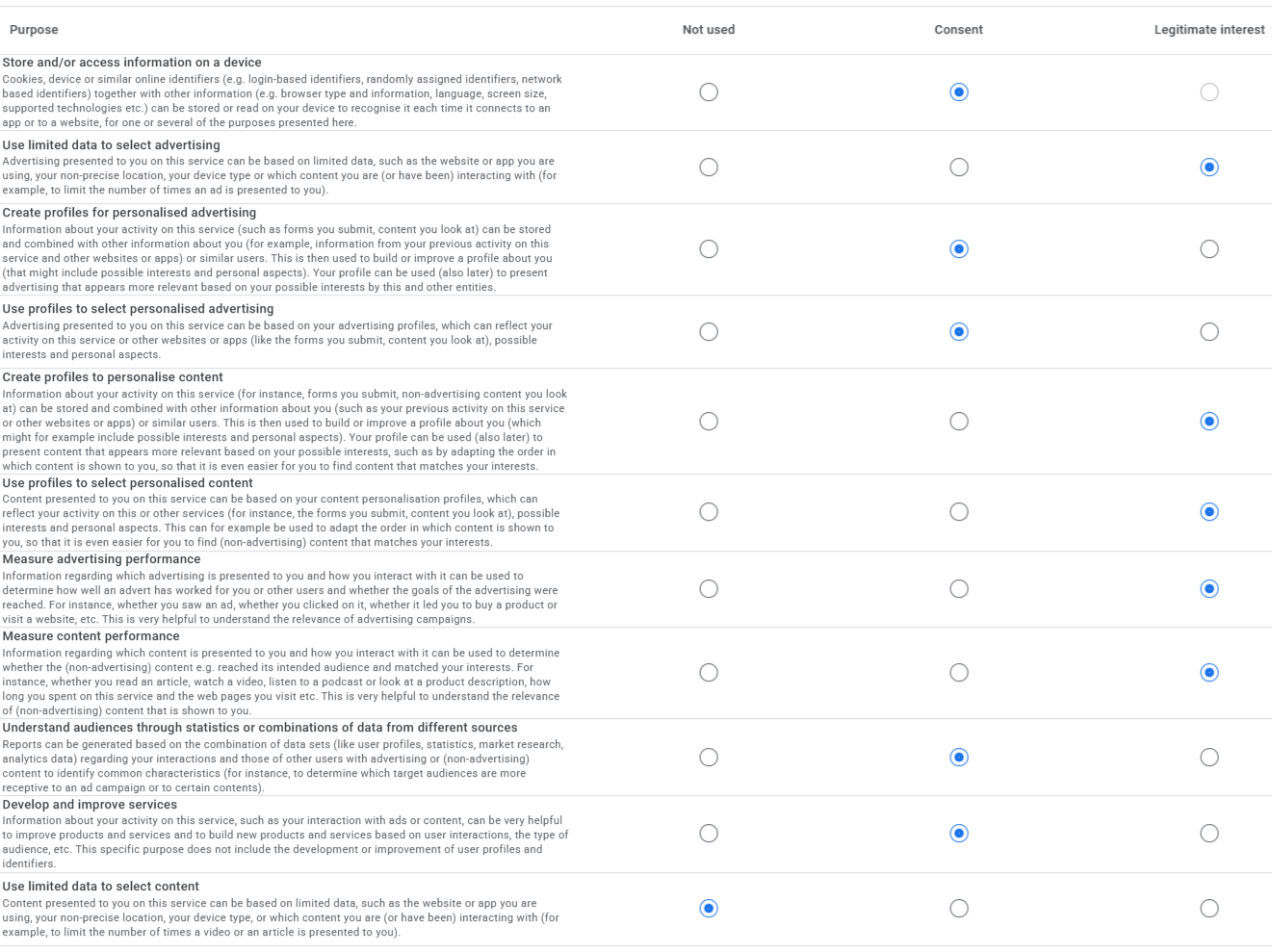
Add Purposes for Your Own Use
This section lets you declare additional first-party processing purposes — beyond the standard IAB TCF purposes — so Funding Choices can request user consent for them in the banner. Configure any additional purposes specific to your implementation, like this:
Save
Remember to click Save (bottom-left of the page) once all sections are configured.
Best Practices Checklist
- Verify whether
dataLayeralready exists - Place Consent Mode inside
<head> - Load Consent Mode before Google tags
- Initialize consent values as
denied - Use Consent Initialization trigger in GTM
- Avoid duplicate Consent Mode implementations
- Avoid duplicate
gtag('config') - Replace old UA IDs with GA4 IDs
- Review and confirm ad partners in Privacy & Messaging
- Configure Legitimate interest and Consent mode toggles
- Save changes in Privacy & Messaging
Additional Notes & Resources
Depending on your implementation, Consent Mode may be configured:
- directly in the website source code,
- through Google Tag Manager,
- or through third-party plugins/integrations.
Always verify the final implementation using browser developer tools or Google Tag Assistant to avoid duplicate tracking or consent conflicts.
Google documentation: https://developers.google.com/tag-platform/security/guides/consent
Οδηγός Ρύθμισης Google Funding Choices – Consent Mode
Επισκόπηση
Αν χρησιμοποιείτε το Google Funding Choices ως πλατφόρμα διαχείρισης συγκατάθεσης (CMP), είναι σημαντικό να βεβαιωθείτε ότι ο ιστότοπός σας είναι σωστά διαμορφωμένος για το Google Consent Mode v2.
Η σωστή ρύθμιση διασφαλίζει ότι:
- τα δεδομένα συλλέγονται μόνο μετά τη συγκατάθεση του χρήστη,
- αποφεύγονται προβλήματα διπλής καταγραφής,
- και ο ιστότοπος παραμένει συμβατός με τον GDPR.
1. Επαλήθευση Υπάρχοντος dataLayer
Πριν προσθέσετε το απόσπασμα Consent Mode, ελέγξτε πρώτα αν υπάρχει ήδη ένα dataLayer στη σελίδα ή μέσω του Google Tag Manager (GTM).
Σε πολλές υλοποιήσεις, το dataLayer έχει ήδη αρχικοποιηθεί από υπάρχοντα Google tags, plugins ή ενσωματώσεις. Δεν πρέπει να δηλώνεται πολλές φορές.
Αν υπάρχει ήδη dataLayer, προσθέστε μόνο το απόσπασμα Consent Mode αμέσως μετά από αυτό.
Λανθασμένη σειρά ή διπλές δηλώσεις dataLayer ενδέχεται να επηρεάσουν τη σωστή λειτουργία των Google tags και του Consent Mode.
2. Προσθήκη του Προεπιλεγμένου Αποσπάσματος Consent Mode
Το προεπιλεγμένο απόσπασμα Consent Mode πρέπει:
- να τοποθετείται εντός του
<head> - να εμφανίζεται πριν από οποιαδήποτε Google tags
- να αρχικοποιεί όλα τα σήματα συγκατάθεσης ως
denied(απορριφθέντα) εξ ορισμού
Παράδειγμα υλοποίησης:
<script>
  window.dataLayer = window.dataLayer || [];
  function gtag() {
    dataLayer.push(arguments);
  }
  gtag('consent', 'default', {
    'ad_storage': 'denied',
    'ad_user_data': 'denied',
    'ad_personalization': 'denied',
    'analytics_storage': 'denied',
    'wait_for_update': 500
  });
  gtag('js', new Date());
  gtag('config', 'G-XXXXXXXXXX');
</script>
Όλες οι παράμετροι συγκατάθεσης αρχικοποιούνται ως denied εξ ορισμού, που σημαίνει ότι δεν συλλέγονται δεδομένα μέχρι ο χρήστης να παράσχει συγκατάθεση.
Το Google Funding Choices ενημερώνει αυτόματα την κατάσταση συγκατάθεσης αφού ο χρήστης αλληλεπιδράσει με το banner συγκατάθεσης.
3. Σημαντικές Επισημάνσεις
Google Tag Manager (GTM)
Αν χρησιμοποιείτε Google Tag Manager, η υλοποίηση του Consent Mode μπορεί να υπάρχει ήδη εκεί αντί να είναι ενσωματωμένη απευθείας στη σελίδα.
Σε αυτή την περίπτωση:
- επαληθεύστε ότι υπάρχει το tag Consent Mode,
- και βεβαιωθείτε ότι ενεργοποιείται με το trigger Consent Initialization.
Μην υλοποιήσετε το απόσπασμα Consent Mode και:
- απευθείας στον πηγαίο κώδικα της σελίδας, και
- μέσα στο GTM
ταυτόχρονα. Αυτό μπορεί να οδηγήσει σε διπλή αρχικοποίηση συγκατάθεσης και απρόβλεπτη συμπεριφορά.
Αποφύγετε Διπλό gtag('config')
Αποφύγετε την εκτέλεση του gtag('config') πολλές φορές (π.χ. τόσο από κώδικα ενσωματωμένο στη σελίδα όσο και από GTM ταυτόχρονα).
Διπλές ρυθμίσεις μπορεί να προκαλέσουν:
- διπλά events
page_view, - ανακριβή αναφορά Google Analytics,
- και ασυνεπή συμπεριφορά καταγραφής.
Κατάργηση Universal Analytics (UA)
Αν ο ιστότοπός σας χρησιμοποιεί ακόμα αναγνωριστικά Universal Analytics (UA-XXXXX), θα πρέπει να αντικατασταθούν με αναγνωριστικά Google Analytics 4 (G-XXXXX).
Το Universal Analytics έχει επίσημα καταργηθεί από την Google και δεν επεξεργάζεται πλέον δεδομένα.
Το Google Analytics 4 (GA4) απαιτείται πλέον για την κατάλληλη υποστήριξη:
- Consent Mode v2
- Google Funding Choices
- Σύγχρονων ενσωματώσεων Google Ads
4. Ρύθμιση Απορρήτου & Μηνυμάτων στο Google Ad Manager / Google AdSense
Απαιτείται πρόσθετη διαμόρφωση στις ρυθμίσεις Απορρήτου & Μηνυμάτων για να λειτουργεί σωστά το Consent Mode v2.
Ανάλογα με το πού είναι υλοποιημένο το GFC σας (Google Ad Manager / AdSense), μεταβείτε στο αντίστοιχο τμήμα λογαριασμού και ορίστε τα εξής:
Μεταβείτε σε: Privacy & Messaging → European regulations → Settings.
Διαφημιστικοί Εταίροι (Ad Partners)
Ανοίξτε "Review your ad partners" → "Automatically include commonly used ad partners" → Edit.
Αφήστε τις υπάρχουσες καταχωρήσεις και επαληθεύστε ότι οι παρακάτω διαφημιστικοί εταίροι είναι παρόντες, προσθέστε τυχόν ελλείποντες και, στη συνέχεια, επιλέξτε Confirm και Save.
Λίστα κοινών διαφημιστικών εταίρων:
- ADYOULIKE SA
- Aniview LTD
- ConnectAd Demand GmbH
- FreeWheel
- GumGum, Inc
- ID5 Technology Ltd
- Madinad Magnite, Inc. (Carbon AI Limited)
- Magnite, Inc. (Outstream)
- Marfeel Solutions, SL
- Marfeel Solutions SL (Compass)
- Media.net
- Membrana Europe BV
- OCM
- Ogury
- Outbrain Inc.
- Sparteo
- Triple13 Ltd
Προσθέστε επίσης τυχόν εργαλεία τρίτων που χρησιμοποιούνται στον ιστότοπο (π.χ.: glomex GmbH, Phaistos Networks, iPROM, Disqus).
Οι υπόλοιπες ενότητες ελέγχουν τον τρόπο με τον οποίο τα σήματα συγκατάθεσης ρέουν από το Funding Choices στα διαφημιστικά και αναλυτικά προϊόντα της Google, καθώς και ποιες νομικές βάσεις είναι διαθέσιμες στους διαφημιστικούς εταίρους όταν οι χρήστες απορρίπτουν μερικά ή όλα τα cookies. Ρυθμίστε κάθε ενότητα όπως περιγράφεται παρακάτω.
Automatically add your bidders and mediation partners
- Enable auto-adding: On
In-Ad transparency controls section
- Show Ad Manager advertiser and targeting information: Off
- Ask buyers to only show ads with DSA transparency information on my site or app: Off
Check creatives for consent section
- Check reservation creatives for consent: Off
- Check RTB (real-time bidding) partner creatives for ad partner consent: Off
Έννομο Συμφέρον (Legitimate Interest)
Στο πλαίσιο του IAB TCF, ορισμένοι διαφημιστικοί εταίροι βασίζονται σε νομική βάση «έννομου συμφέροντος» για ορισμένες επεξεργασίες — συνήθως μέτρηση, πρόληψη απάτης και βελτίωση προϊόντων. Η ενεργοποίηση αυτών των ελέγχων επιτρέπει σε εκείνους τους εταίρους να συνεχίσουν την επεξεργασία δεδομένων σε αυτή τη βάση όταν οι χρήστες δεν έχουν δώσει πλήρη συγκατάθεση, προστατεύοντας τα διαφημιστικά έσοδα και παραμένοντας συμβατοί με τον GDPR.
- Legitimate interest controls: On
- Enable by default: On
Consent Mode
Αυτές οι επιλογές δίνουν εντολή στην Google να τηρεί τα σήματα Consent Mode v2 (ad_storage, ad_user_data, ad_personalization, analytics_storage) που αρχικοποιήσατε στο απόσπασμα της σελίδας. Χωρίς αυτές, τα σήματα αποστέλλονται από τα tags σας αλλά αγνοούνται από την Google, και η συμπεριφορά διαφημίσεων/αναλυτικών επιστρέφει στον προεπιλεγμένο χειρισμό συγκατάθεσης.
- Enable consent mode for advertising purposes: On
- Enable consent mode for analytics purposes: On
Special feature 2 section
- Enable opt-in signal collection for IAB TCF special feature 2: Off
Consent syncing
Αν υπάρχει κάποια εφαρμογή που έχει έσοδα (monetized), προσθέστε την εδώ και ακολουθήστε τις οδηγίες.
Προσθήκη Σκοπών για Δική σας Χρήση
Αυτή η ενότητα σάς επιτρέπει να δηλώσετε πρόσθετους σκοπούς επεξεργασίας πρώτου μέρους — πέρα από τους τυπικούς σκοπούς IAB TCF — ώστε το Funding Choices να μπορεί να ζητά τη συγκατάθεση του χρήστη για αυτούς στο banner. Ρυθμίστε τυχόν πρόσθετους σκοπούς που αφορούν την υλοποίησή σας, όπως στο παρακάτω παράδειγμα:
Αποθήκευση (Save)
Θυμηθείτε να κάνετε κλικ στο Save (κάτω αριστερά της σελίδας) μόλις διαμορφωθούν όλες οι ενότητες.
Λίστα Ελέγχου Βέλτιστων Πρακτικών
- Επαλήθευση αν υπάρχει ήδη το
dataLayer - Τοποθέτηση του Consent Mode εντός του
<head> - Φόρτωση του Consent Mode πριν από τα Google tags
- Αρχικοποίηση τιμών συγκατάθεσης ως
denied - Χρήση trigger Consent Initialization στο GTM
- Αποφυγή διπλών υλοποιήσεων Consent Mode
- Αποφυγή διπλού
gtag('config') - Αντικατάσταση παλιών αναγνωριστικών UA με αναγνωριστικά GA4
- Έλεγχος και επιβεβαίωση διαφημιστικών εταίρων στο Privacy & Messaging
- Διαμόρφωση επιλογών Legitimate Interest και Consent Mode
- Αποθήκευση αλλαγών στο Privacy & Messaging
Πρόσθετες Σημειώσεις
Ανάλογα με την υλοποίησή σας, το Consent Mode μπορεί να διαμορφωθεί:
- απευθείας στον πηγαίο κώδικα του ιστότοπου,
- μέσω του Google Tag Manager,
- ή μέσω plugins/ενσωματώσεων τρίτων.
Να επαληθεύετε πάντα την τελική υλοποίηση χρησιμοποιώντας εργαλεία ανάπτυξης του browser ή το Google Tag Assistant για να αποφύγετε διπλή καταγραφή ή συγκρούσεις συγκατάθεσης.
Google documentation: https://developers.google.com/tag-platform/security/guides/consent