Subscriptions Overview
Subscriptions represent users who have opted in to receive push notifications from your app. Each subscription contains information about the subscriber's device, location, and engagement.
Accessing Subscriptions
- Navigate to your app
- Click Subscriptions in the app menu
Subscription List
View all your subscribers with filtering and sorting options.
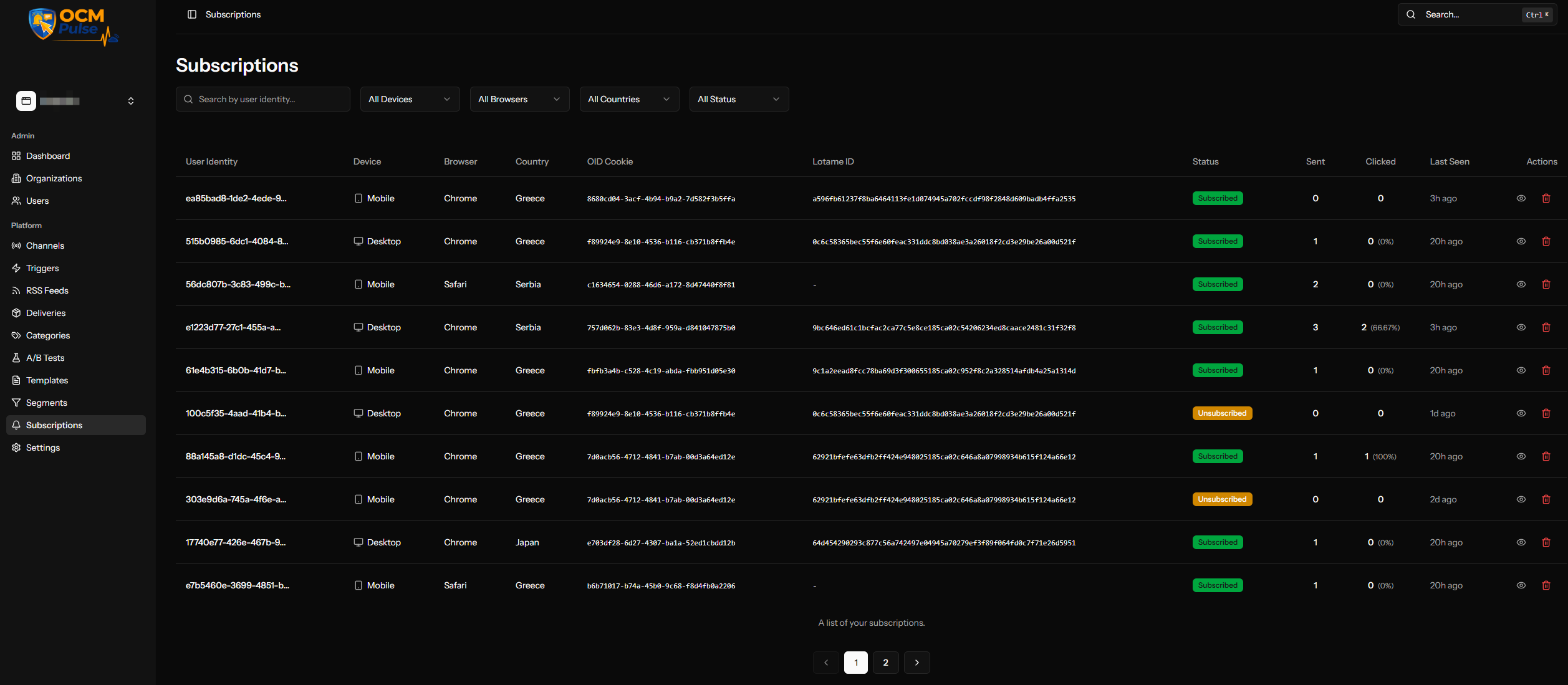
Available Filters
| Filter | Description |
|---|---|
| Search | Search by user identity |
| Device Type | Desktop, Mobile, or Tablet |
| Browser | Chrome, Firefox, Safari, Edge, etc. |
| Country | Filter by country code |
| Status | Subscribed or Unsubscribed |

Table Columns
The subscription list displays the following columns:
| Column | Description |
|---|---|
| User Identity | Unique identifier for the subscriber |
| Device | Device type (Desktop, Mobile, Tablet) |
| Browser | Browser name |
| Country | Country the subscriber is located in |
| OID Cookie | External identifier captured by the OCM Reaper integration (stored on the subscription as the oid_cookie tag). |
| Lotame ID | Lotame Panorama ID captured via the Lotame integration (stored as the lotame_id tag). |
| Status | Subscribed or Unsubscribed |
| Sent | Total notifications sent |
| Clicked | Total clicks with click rate percentage |
| Last Seen | Most recent activity |
| Actions | Delete subscription |
Subscription Details
Click View details on any subscription row to open its detail panel. The panel has two tabs: Details (identity, device, engagement, and status information) and Notification History (every notification sent to this specific subscriber).
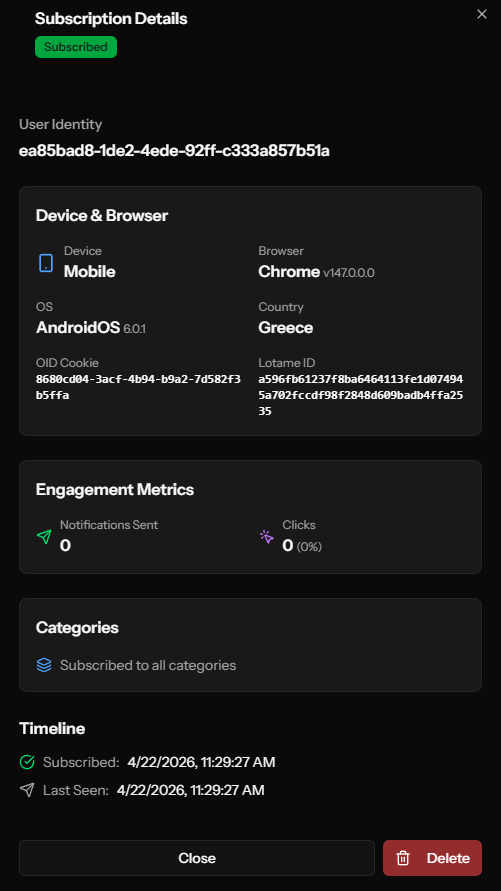
Identity
| Field | Description |
|---|---|
| User Identity | Unique identifier for the subscriber |
| Subscription ID | Internal numeric ID for this subscription record |
| Status | Current subscription status |
| Created At | When they first subscribed |
Device Information
| Field | Description |
|---|---|
| Device Type | Desktop, Mobile, or Tablet |
| Browser | Browser name (Chrome, Firefox, etc.) |
| Browser Version | Specific version number |
| OS | Operating system |
| OS Version | OS version number |
Location
| Field | Description |
|---|---|
| Country | Country the subscriber is located in |
Engagement Metrics
| Metric | Description |
|---|---|
| Notifications Sent | Total notifications received |
| Clicks | Total clicks with click rate percentage |
Frequency Cap Status
Shows this subscriber's current standing against both capping mechanisms independently (see Editing an App for how these are configured):
| Field | Description |
|---|---|
| Global cap | Eligibility status, sends used in the current window, and the window length |
| Cool-down cap | Same breakdown, for the separate Cool-down Frequency Capping mechanism |
A subscriber can be Eligible on one cap and blocked by the other — this view makes it possible to tell which cap (if either) is currently limiting a specific subscriber, rather than only seeing an aggregate capped count at the app level.
Delivery Failures
| Field | Description |
|---|---|
| Consecutive Failures | How many sends in a row have failed for this subscriber |
A high consecutive-failure count on an otherwise "Subscribed" record can indicate a subscription that's gone stale (see Deliveries: Error Messages for what individual failure codes mean).
Categories
The detail view shows which delivery categories the subscriber is subscribed to, displayed as color-coded badges.
Timeline
The detail view includes a timeline section showing:
| Event | Description |
|---|---|
| Subscribed | When the user first subscribed |
| Last Seen | Most recent visit to your site |
| Last Clicked | Most recent notification click |
Tags
Custom key-value pairs for segmentation. Tags can be:
- Set programmatically via the SDK
- Set via API
- Captured automatically by platform integrations (see External Identifiers below)
- Used in segment rules
External Identifiers
If your OCM Push instance has the Lotame and/or Reaper (OID) integrations enabled, the SDK captures external identifiers from the browser and stores them on each subscription as tags:
| Tag Key | Source | Description |
|---|---|---|
oid_cookie | OCM Reaper | A shared OCM audience ID, loaded on the page by the standalone reaper script (ocm-push-reaper.js) and persisted on the subscription. |
lotame_id | Lotame Panorama ID | The cross-device identifier from the Lotame DMP, resolved from the page's consent context. |
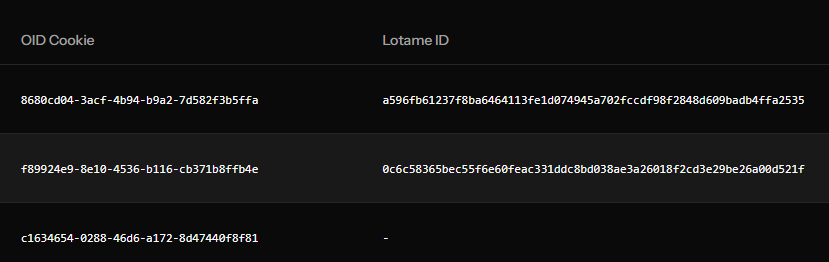
These tags can be:
- Filtered and displayed in the subscriptions list (dedicated OID Cookie and Lotame ID columns).
- Used in Segments via
Tagrules (e.g.Tag "lotame_id" has value "<panorama-id>"). - Exported for downstream audience sync with your DMP/DSP.
The SDK only writes these tags when the integrations are enabled and the corresponding identifier is actually available in the browser. Users whose browsers block the reaper or Lotame scripts simply won't have those tags set.
Notification History
The second tab on a subscription's detail panel — a per-notification log of every delivery sent to that specific subscriber, most recent first:
| Column | Description |
|---|---|
| Title | The notification's title |
| Timestamp | When it was sent to this subscriber |
| Delivery Status | Delivered, Failed, etc. |
| Click Status | Clicked or Not clicked |
Paginated for subscribers with a long history. This is the fastest way to answer "did this specific person actually receive and see notification X" without cross-referencing the Deliveries list.
Subscription Status
| Status | Description |
|---|---|
| Subscribed | Active, can receive notifications |
| Unsubscribed | User opted out, cannot receive |
How Users Become Unsubscribed
- User disables notifications in browser settings
- User clicks "unsubscribe" (if you provide this option)
- Push token expires (browser/device change)
- System detects invalid subscription
Managing Subscriptions
Deleting a Subscription
To remove a subscription:
- Find the subscription in the list
- Click the delete action
- Confirm deletion
Deleting a subscription is permanent. If the user wants to resubscribe, they'll need to opt in again on your website.
Bulk Management
For bulk operations, use the REST API. See the API documentation for:
- Listing subscriptions with filters
- Deleting subscriptions
- Updating tags
Understanding Your Audience
Device Distribution
Review your device type breakdown:
- Desktop - Traditional computers
- Mobile - Phones
- Tablet - Tablets
This helps you:
- Optimize notification timing
- Design appropriate content
- Understand reach
Browser Distribution
See which browsers your audience uses:
- Affects notification appearance
- Impacts feature availability
- Helps troubleshoot issues
Geographic Distribution
Country data helps with:
- Timing notifications appropriately
- Creating location-based segments
- Understanding your audience reach
Subscription Growth
Monitor subscription trends:
- New subscriptions over time
- Unsubscribe rates
- Net subscriber growth
A healthy push notification program has:
- Steady subscription growth
- Low unsubscribe rates
- Good engagement metrics
Tags and Custom Data
Tags allow you to store custom data on subscriptions for segmentation.
Common Tag Use Cases
| Tag Key | Example Value | Use Case |
|---|---|---|
plan | premium | Tier-based messaging |
category | sports | Content preferences |
signup_source | landing_page | Attribution |
last_purchase | 2024-01-15 | E-commerce triggers |
Setting Tags
Tags are typically set server-side from your own backend using the public subscription-tags endpoint. Pass the subscription's user identifier (the userId the SDK exposes after onSubscriptionChange) along with the tags you want to write:
POST /api/public/subscription-tags
Content-Type: application/json

{
  "app_id": "YOUR-APP-ID",
  "user_id": "the-userId-from-the-SDK",
  "tags": {
    "plan": "premium",
    "signup_source": "landing_page"
  }
}
For admin-side operations — including listing and tagging subscriptions in bulk from your internal tooling — use the authenticated dashboard API (POST /api/client/apps/{app}/subscriptions/{subscription}/tags).
The SDK itself does not expose a client-side setTag() method. Reading the subscription's userId on onSubscriptionChange and POSTing from your backend keeps custom tag values out of the browser, which is usually what you want for things like subscription plan or CRM IDs. Integrations that run purely in the browser (Lotame, Reaper / OID) are captured automatically — you don't need to tag those yourself.
Tips for Growing Subscribers
Increase Opt-Ins
- Use soft prompts before native prompts
- Explain the value of notifications
- Time prompts after user engagement
- Offer category selection
Reduce Unsubscribes
- Don't over-send
- Keep content relevant
- Allow frequency preferences
- Use segmentation
Improve Engagement
- Send at optimal times
- Personalize content
- A/B test messages
- Track and learn from metrics
Next Steps
- Create Segments based on subscription data
- Set Up Categories for subscriber preferences
- Configure Permission Prompts