Segments Overview
Segments let you group subscribers based on their attributes and behavior. Use segments to send targeted notifications to specific audiences.
Why Use Segments?
Instead of sending to everyone, segments let you:
- Target specific user groups
- Increase relevance and engagement
- Reduce unsubscribes
- Personalize messaging
Example segments:
- "Mobile users in the US"
- "Users who clicked in the last 7 days"
- "Premium plan subscribers"
Accessing Segments
- Navigate to your app
- Click Segments in the app menu
Segment List
View all your segments as cards showing:
- Segment name
- Description (if provided)
- Number of matching subscribers
- Last calculated timestamp
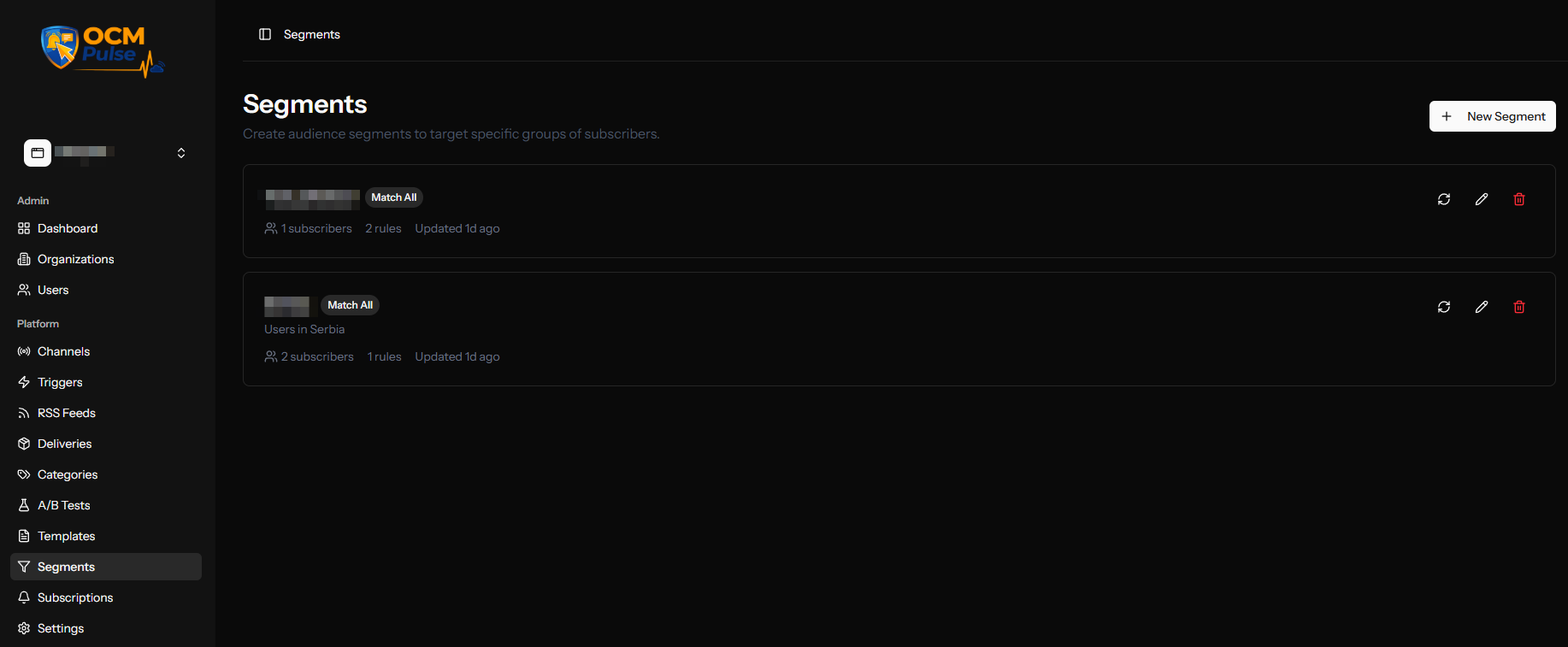
Actions
| Action | Description |
|---|---|
| Create | Add a new segment |
| Edit | Modify segment rules |
| Recalculate | Update subscriber count |
| Delete | Remove the segment |
Segment Templates
For common targeting needs, you can skip manual rule-building entirely. Templates create the segment with one click — you can rename it or adjust the rules afterward before saving.

| Template | Rule(s) |
|---|---|
| Highly Engaged | Clicked 3+ notifications and seen in the last 14 days (2 rules) |
| New Subscribers | Subscribed in the last 7 days (1 rule) |
| At Risk | Subscribed 30+ days and never clicked a notification (2 rules) |
| Dormant | Last seen more than 60 days ago (1 rule) |
| Mobile Only | Subscribers on mobile devices (1 rule) |
| Desktop Only | Subscribers on desktop devices (1 rule) |
| Tablet Only | Subscribers on tablet devices (1 rule) |
| Recently Clicked | Clicked a notification in the last 7 days (1 rule) |
To use one, click Use Template on the card. The segment is created immediately and appears in Your Segments below — open it any time to rename it or refine the rules.
Creating a Segment
1. Basic Information
| Field | Description | Required |
|---|---|---|
| Name | Descriptive segment name | Yes |
| Description | Explanation of the segment (max 1000 characters) | No |
2. Match Type
Choose how rules are combined:
| Type | Logic | Description |
|---|---|---|
| All | AND | Subscriber must match ALL rules |
| Any | OR | Subscriber must match ANY rule |
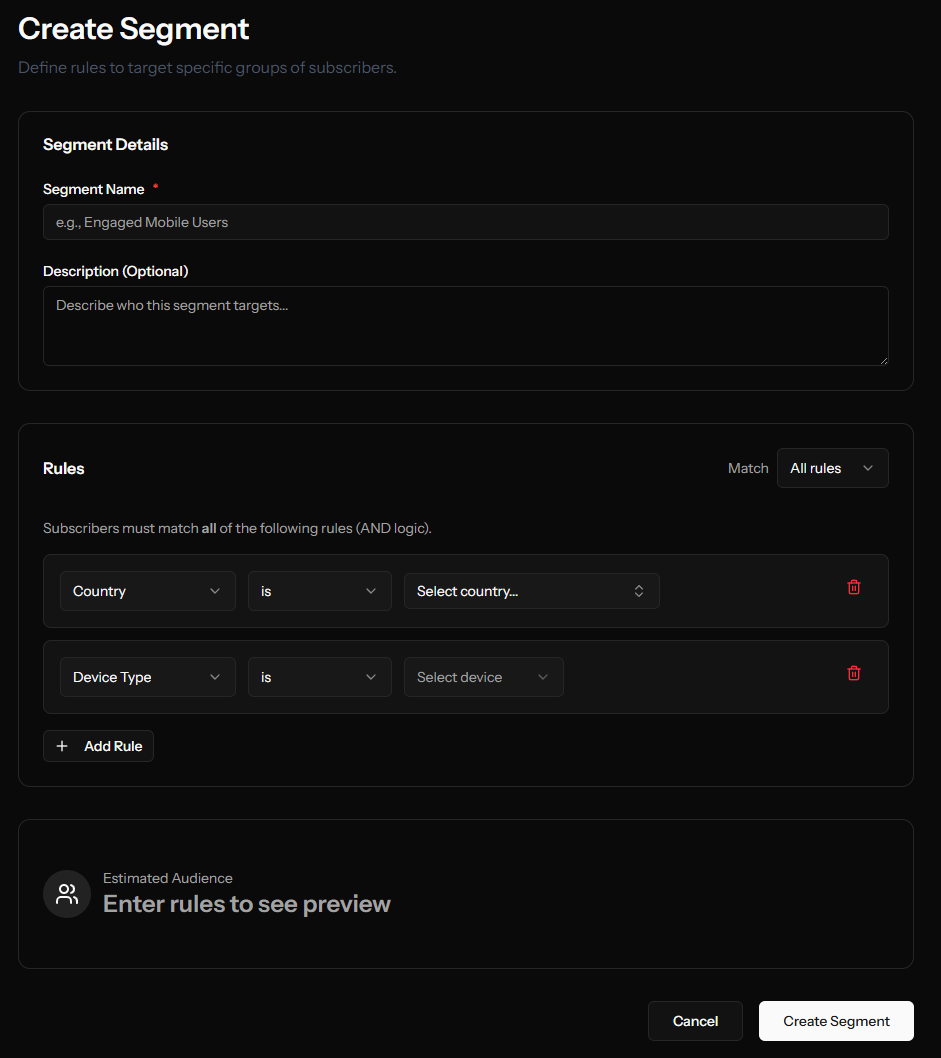
Example with "All":
- Rule 1: Country = US
- Rule 2: Device = Mobile
- Result: Only US mobile users
Example with "Any":
- Rule 1: Country = US
- Rule 2: Country = UK
- Result: US OR UK users
3. Rules
Add one or more rules to define your segment. Each rule consists of:
| Component | Description |
|---|---|
| Field | What attribute to check |
| Operator | How to compare |
| Value | What to compare against |
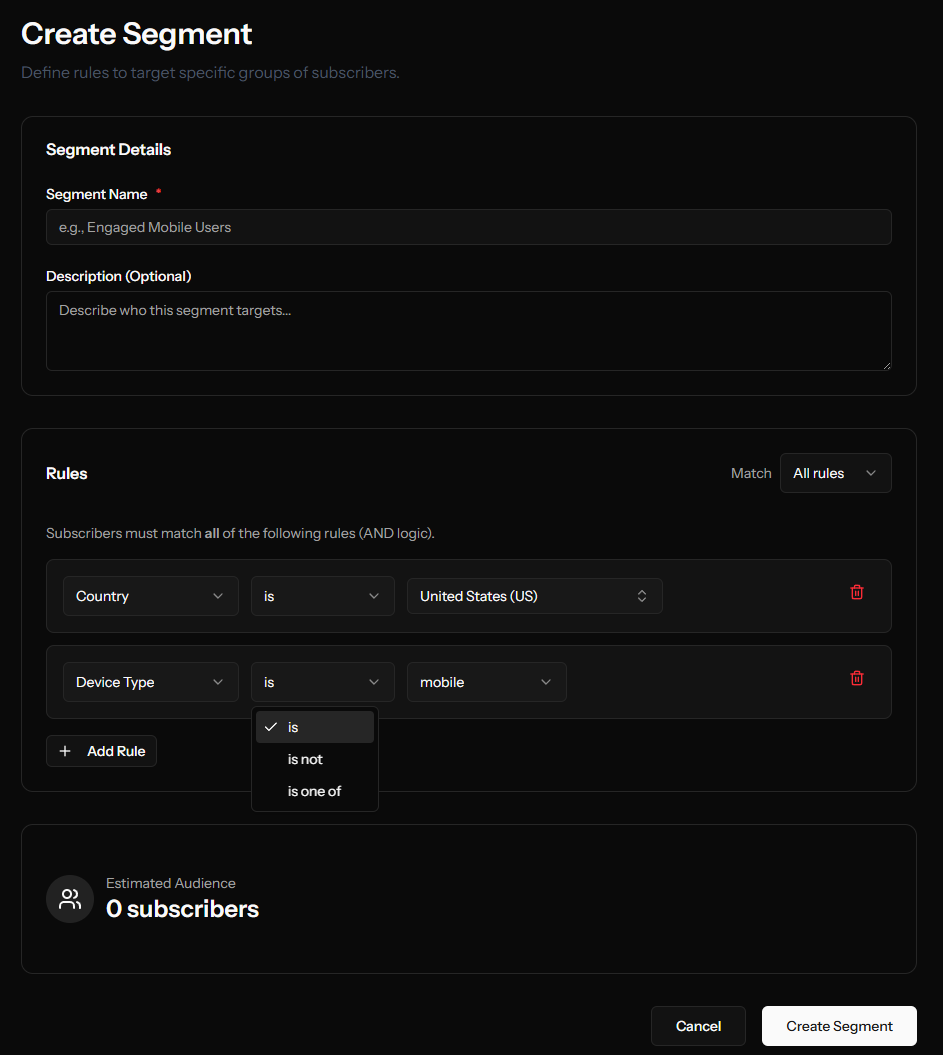
Available Fields
Device & Browser
| Field | Description | Example Operators |
|---|---|---|
| Device Type | Desktop, Mobile, or Tablet | equals, not equals |
| Browser | Browser name (Chrome, Firefox, Safari, Edge, Opera) | equals, in, not in |
Location
| Field | Description | Example Operators |
|---|---|---|
| Country | Two-letter country code | equals, in, not in |
Engagement
| Field | Description | Example Operators |
|---|---|---|
| Last Seen | Most recent activity (uses relative dates like "-7 days", "-1 month", "now" with the "between" operator) | greater than, less than, between |
| Last Clicked | Most recent notification click (uses relative dates like "-7 days", "-1 month", "now" with the "between" operator) | greater than, less than, between |
| Subscribed At | When the subscriber first subscribed (uses relative dates like "-7 days", "-1 month", "now" with the "between" operator) | greater than, less than, between |
| Notifications Sent | Total received | greater than, less than |
| Notifications Clicked | Total notifications clicked | greater than, less than |
| Click Rate | Engagement percentage | greater than, less than |
Custom Tags
| Field | Description | Example Operators |
|---|---|---|
| Tag | Custom tag value | has, has not, has value |
Operators
Comparison Operators
| Operator | Symbol | Description |
|---|---|---|
| Equals | = | Exact match |
| Not Equals | ≠ | Does not match |
| Greater Than | > | Value is more than |
| Less Than | < | Value is less than |
| Greater or Equal | ≥ | Value is at least |
| Less or Equal | ≤ | Value is at most |
| Between | ↔ | Value is within range |
Collection Operators
| Operator | Description |
|---|---|
| In | Value is one of the listed options |
| Not In | Value is not in the list |
| Contains | Text contains substring |
Tag Operators
| Operator | Description |
|---|---|
| Has | Tag key exists |
| Has Not | Tag key doesn't exist |
| Has Value | Tag has specific value |
Live Preview
As you build your segment:
- Rules are validated in real-time
- Matching subscriber count updates
- Preview shows estimated audience size
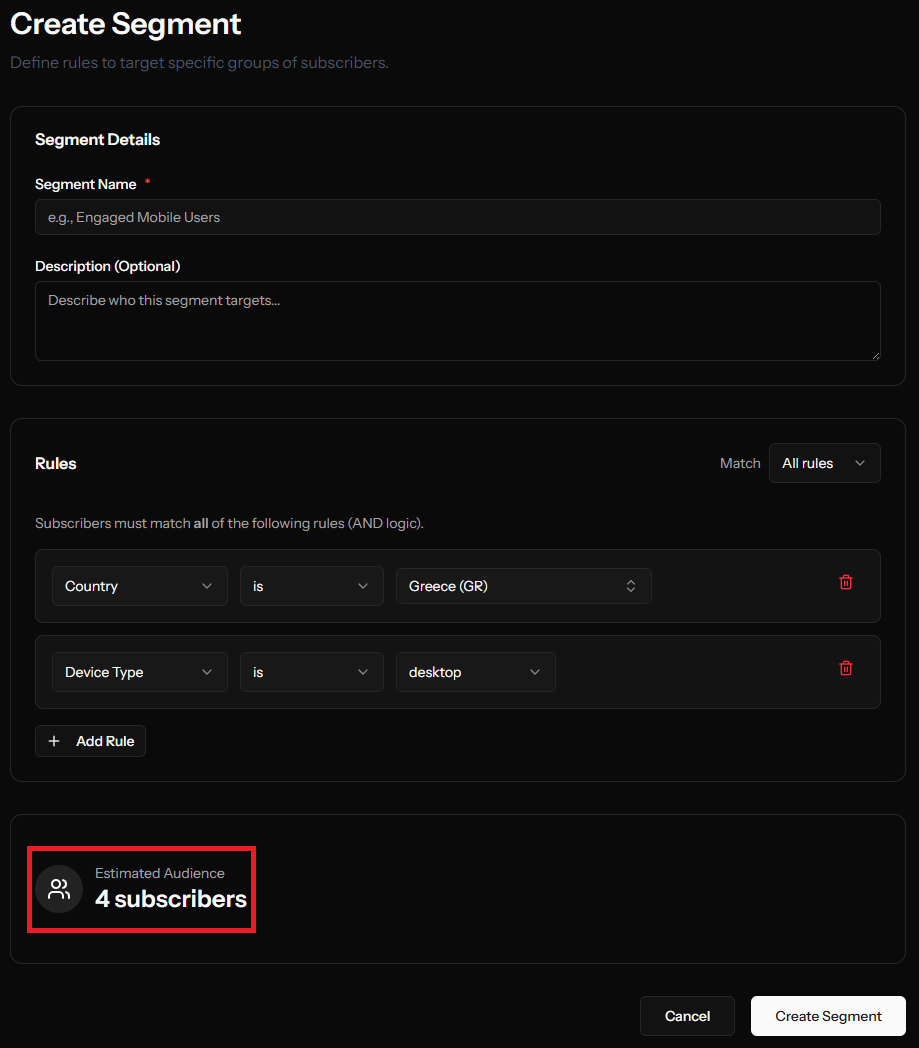
This helps you refine rules before saving.
Example Segments
Engaged Mobile Users
Match: All
Rules:
  - Device Type equals Mobile
  - Click Rate greater than 3%
International Audience
Match: Any
Rules:
  - Country equals UK
  - Country equals DE
  - Country equals FR
Premium Subscribers
Match: All
Rules:
  - Tag "plan" has value "premium"
Subscribers with a Known Lotame / OID Identifier
Match: Any
Rules:
  - Tag "lotame_id" has
  - Tag "oid_cookie" has
If your app has the Lotame and/or Reaper integrations enabled, these tags are written automatically to subscriptions by the SDK. See External Identifiers on Subscriptions.
Dormant Users
Match: All
Rules:
  - Last Seen less than 30 days ago
  - Notifications Sent greater than 5
  - Click Rate less than 1%
New Desktop Users
Match: All
Rules:
  - Device Type equals Desktop
  - Notifications Sent less than 3
Using Segments
In Manual Triggers
When creating a notification, select a segment to target only matching subscribers.
In RSS Triggers
Configure RSS triggers to automatically send to a segment.
In A/B Tests
Run tests against specific segments for focused optimization.
Managing Segments
Editing a Segment
- Click the segment card
- Modify name, description, or rules
- Save changes
- Audience count recalculates automatically
Recalculating Counts
Segment counts are cached for performance. To get the current count:
- Click Recalculate on the segment card
- Wait for the count to update
Deleting a Segment
- Click the delete button on the segment card
- Confirm deletion
Deleting a segment doesn't affect:
- Existing deliveries that used this segment
- Triggers that reference this segment (they'll target all subscribers instead)
Best Practices
Keep Segments Focused
- One clear purpose per segment
- Avoid overly complex rules
- Document with descriptions
Name Clearly
Good: "US Mobile Users - High Engagement" Bad: "Segment 1"
Test Before Using
- Check the audience count
- Send test notifications to yourself first
- Monitor performance
Review Regularly
- Audience sizes change over time
- Remove unused segments
- Update rules as needed
Combine with Categories
Use segments with delivery categories for powerful targeting:
- Segment: "Sports fans"
- Category: "Breaking news"
Segment Limits
| Limit | Value |
|---|---|
| Rules per segment | Maximum 10 |
| Segments per app | Unlimited |