A/B Testing for RSS Triggers
A/B testing helps you optimize notification content by testing multiple variants with a subset of subscribers before sending the winning version to everyone.
How It Works
When an RSS trigger with A/B testing enabled detects a new item:
- AI Generation - The system generates multiple notification variants using AI
- Pending Review - Test enters a review queue for your approval
- Your Review - You can edit variants or discard the test
- Test Phase - A percentage of subscribers receive different variants
- Winner Selection - Best performer is selected (automatically or manually)
- Rollout - Remaining subscribers receive the winning variant
Setting Up A/B Testing
Enable on RSS Trigger
- Go to Triggers → RSS Feed → Configure
- Check Enable A/B Testing
- Configure settings:
| Setting | Description | Recommendation |
|---|---|---|
| Variants | Number of versions (2, 3, or 4) | Start with 2 |
| Test % | Subscribers for testing (10-50%) | 10-20% |
| Auto-Select | Automatically pick winner | Enable for efficiency |
| Delay Hours | Time before auto-select (2, 4, 6, 12, 24, 48, or 72 hours) | 2-4 hours |
The Review Queue
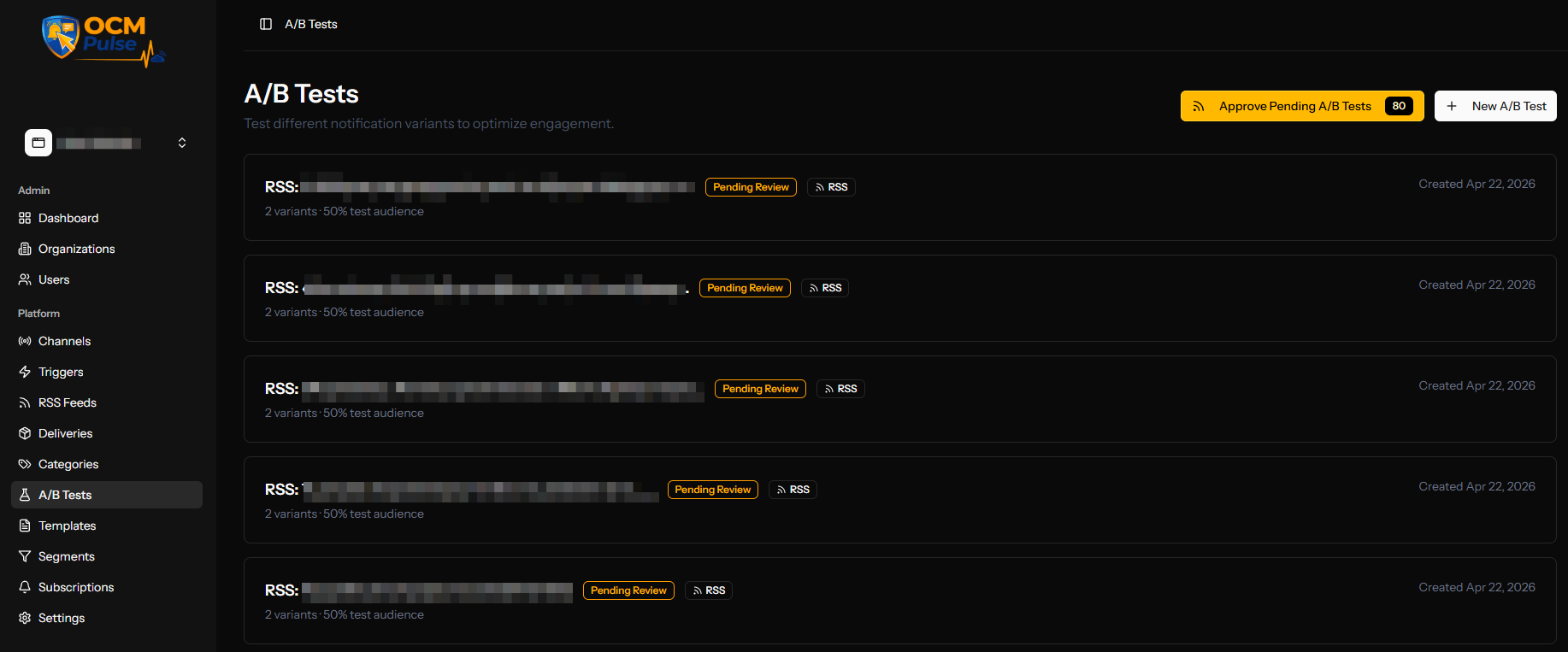
Accessing the Queue
When A/B tests are pending review:
- Navigate to A/B Tests
- Click RSS Queue button (shows count of pending tests)
- View all tests awaiting your action
Queue Actions
For each pending test, you can:
| Action | Result |
|---|---|
| Quick Approve | Start test immediately with current variants |
| Review & Edit | Open detailed editor to modify variants |
| Discard | Skip this article, no notification sent |
Reviewing and Editing Variants
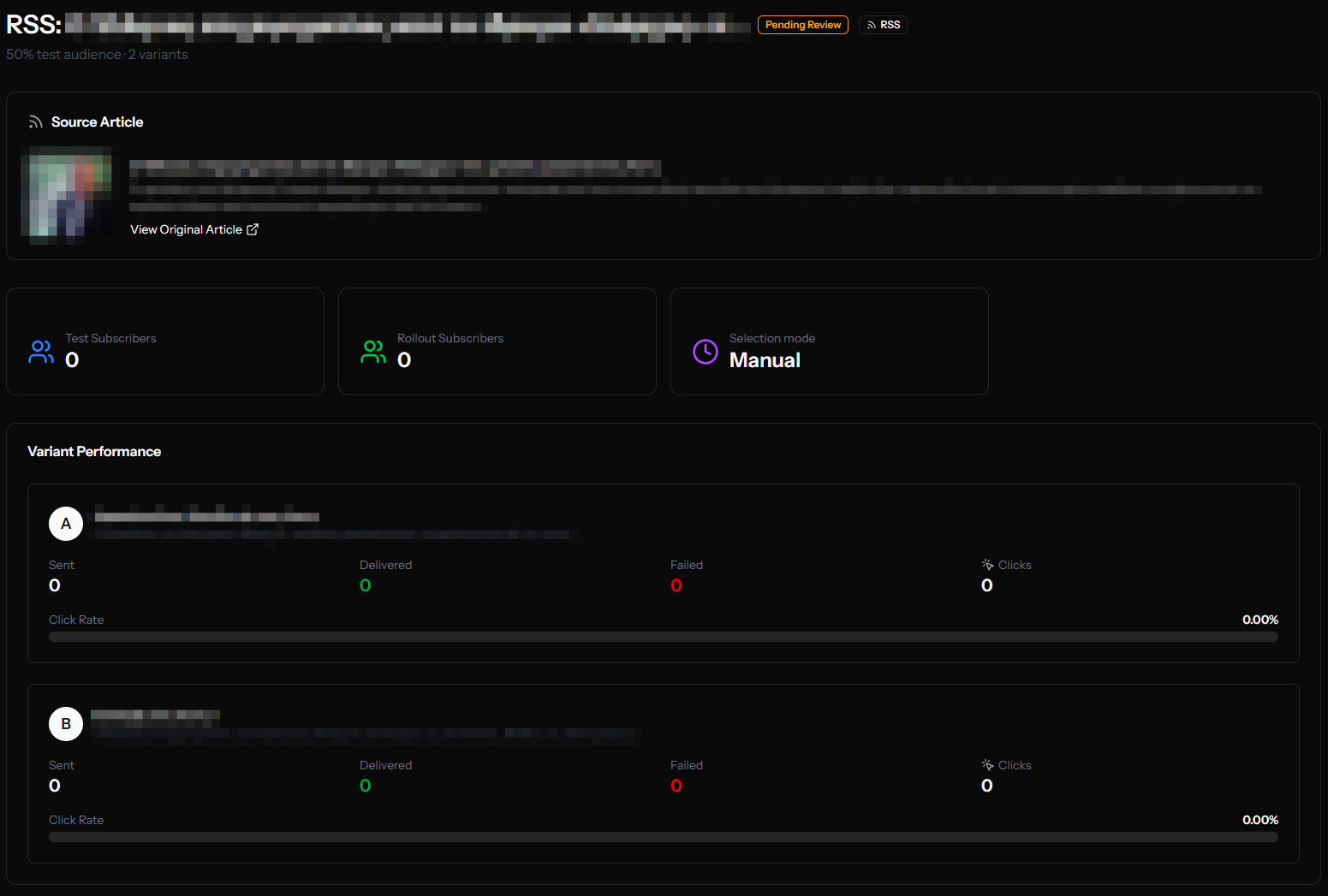
The Review Page
Shows:
- Source Article - Original RSS content
- Generated Variants - AI-created notification versions
- Test Settings - Configuration summary
Editing Variants
For each variant, you can edit:
- Title (max 100 characters)
- Body (max 200 characters)
- URL (optional override)
- Image URL (optional override)
Character counters help you stay within limits.
Regenerating Variants
If the AI variants aren't suitable:
- Click Regenerate Variants
- Wait for new variants to be generated
- Review and edit as needed
Test Lifecycle
Status Flow
PENDING_REVIEW → DRAFT → TESTING → SELECTING_WINNER → COMPLETED
       ↓           ↓         ↓
   CANCELLED   CANCELLED  CANCELLED
| Status | Description |
|---|---|
| Pending Review | AI variants generated, awaiting approval |
| Draft | Approved but not yet started |
| Testing | Variants being sent to test subscribers |
| Selecting Winner | Test phase complete, awaiting selection |
| Completed | Winner rolled out to all subscribers |
| Cancelled | Test cancelled, no notifications sent |
Viewing Test Results
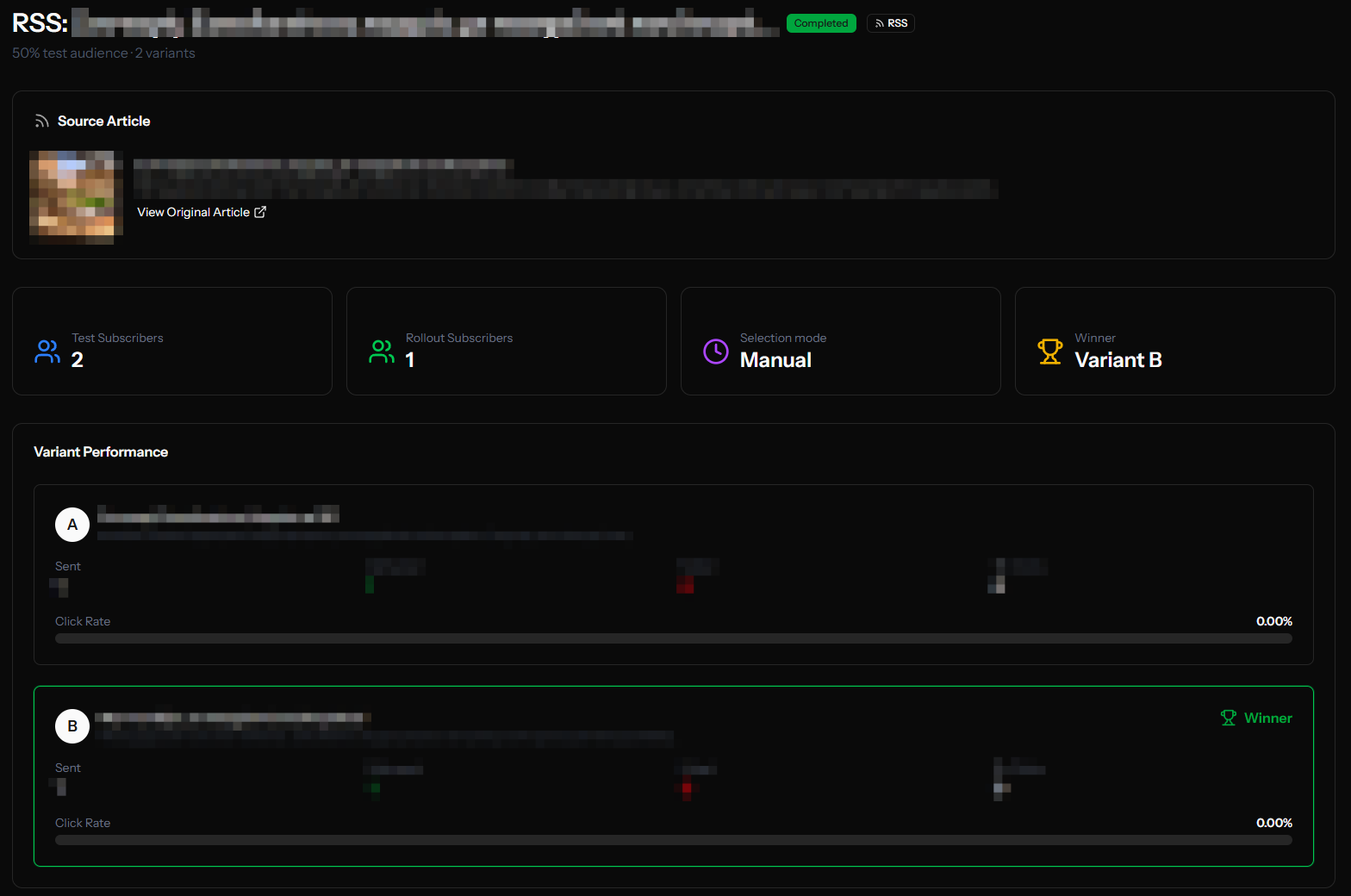
The Test Details Page
After approving, view detailed metrics:
Test Information
- Test name and article source
- Configuration (percentage, variants)
- Subscriber counts
Variant Performance
For each variant:
| Metric | Description |
|---|---|
| Subscribers | Number who received this variant |
| Clicks | Total clicks on this variant |
| Click Rate | Percentage who clicked |
| Progress Bar | Visual comparison |
Identifying the Winner
The variant with the highest click rate typically wins. Consider:
- Statistical significance (enough data?)
- Click quality (right landing page?)
- Total volume vs. rate
Selecting a Winner
Automatic Selection
If Auto-Select Winner is enabled:
- System waits for the configured delay
- Picks the variant with highest click rate
- Sends to remaining subscribers automatically
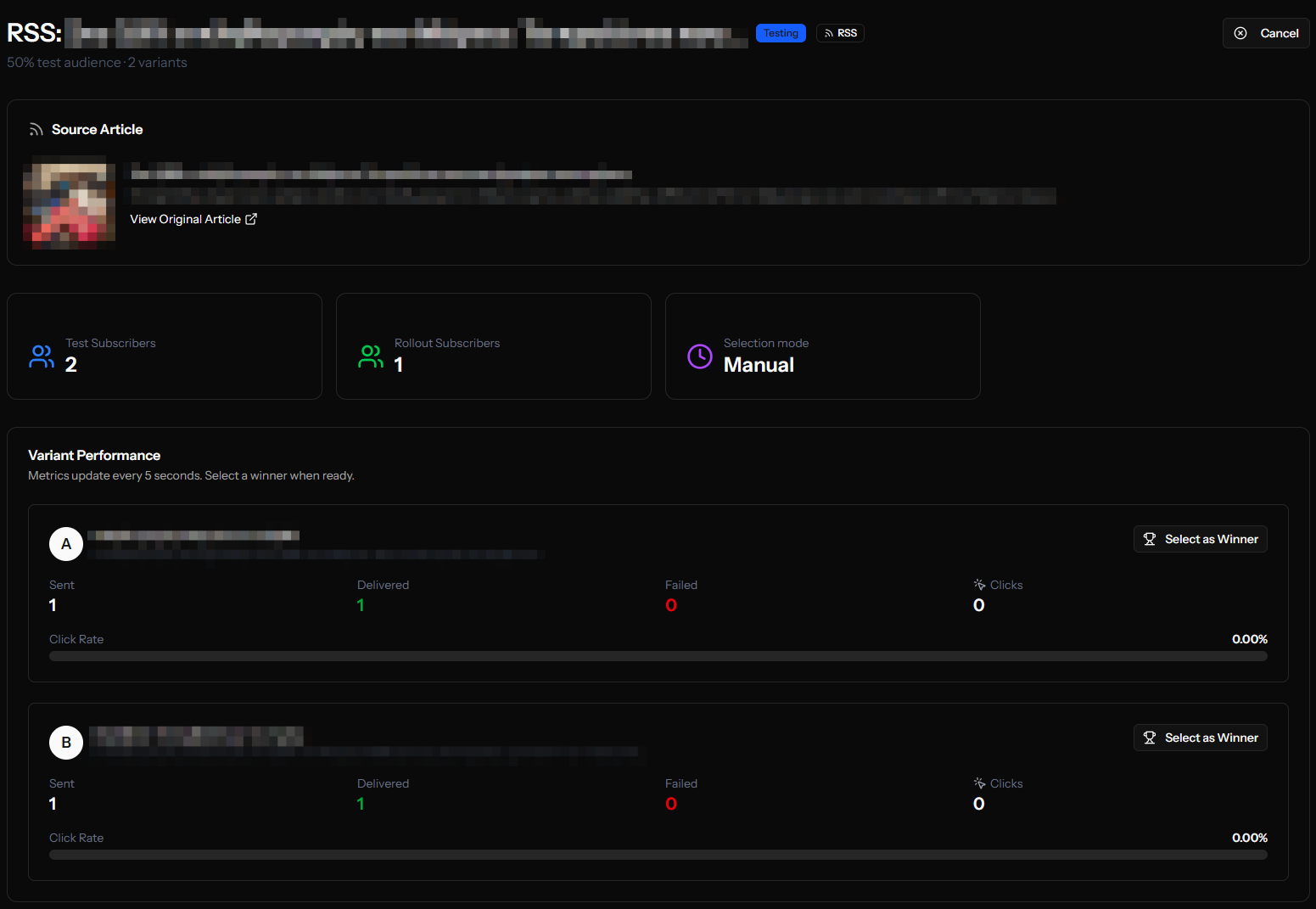
Manual Selection
If auto-select is disabled or you want to choose early:
- Open the test details page
- Review variant performance
- Click Select Winner on your chosen variant
- Confirm the selection
Managing Tests
Start a Test
From the A/B Tests list, click on a Draft test and click Start Test.
Cancel a Test
You can cancel tests that are:
- In Draft status (not yet started)
- In Testing status (will stop, no rollout)
Cancelled tests don't send any further notifications.
Delete a Draft
Draft tests can be deleted entirely if you don't want to run them.
Best Practices
Variant Strategy
Do:
- Make meaningful differences between variants
- Test one element at a time (title vs. different title)
- Use clear, concise language
Don't:
- Make variants too similar
- Test multiple changes at once
- Ignore the AI suggestions entirely
Test Percentage
| Percentage | Best For |
|---|---|
| 10% | Large subscriber bases, cautious testing |
| 20% | Balanced testing and reach |
| 30-50% | Small subscriber bases, faster results |
Timing
| Delay | Best For |
|---|---|
| 1-2 hours | Time-sensitive news |
| 4-6 hours | Standard content |
| 12-24 hours | Evergreen content |
Analysis
- Wait for sufficient clicks before drawing conclusions
- Consider time of day effects
- Look at click rate, not just total clicks
- Review multiple tests for patterns
Troubleshooting
No Variants Generated
- Check AI service availability
- Verify RSS content has title and description
- Contact support if persistent
Test Not Starting
- Ensure you have subscribers
- Check if Web Push channel is configured
- Verify app has the RSS trigger active
Results Seem Wrong
- Verify subscribers are evenly distributed
- Check for delivery failures
- Ensure enough time has passed
Example Workflow
- 9:00 AM - New blog post published
- 9:15 AM - RSS trigger detects post
- 9:16 AM - AI generates 3 variants
- 9:16 AM - Test enters Pending Review queue
- 9:30 AM - You review and approve
- 9:30 AM - Test starts, 20% of subscribers get variants
- 1:30 PM - Auto-select triggered (4 hours later)
- 1:31 PM - Winner identified (Variant B: 4.2% click rate)
- 1:31 PM - Remaining 80% of subscribers get Variant B
Next Steps
- Create Segments for targeted A/B tests
- View Delivery Results
- Manage Manual A/B Tests