RSS Trigger
RSS Triggers automatically send notifications when new content appears in your RSS feed. Perfect for blogs, news sites, and any content with an RSS feed.
Prerequisites
Before configuring an RSS trigger:
- Create an RSS Feed in RSS Feeds section
- Have the Web Push channel configured
Managing RSS Feeds
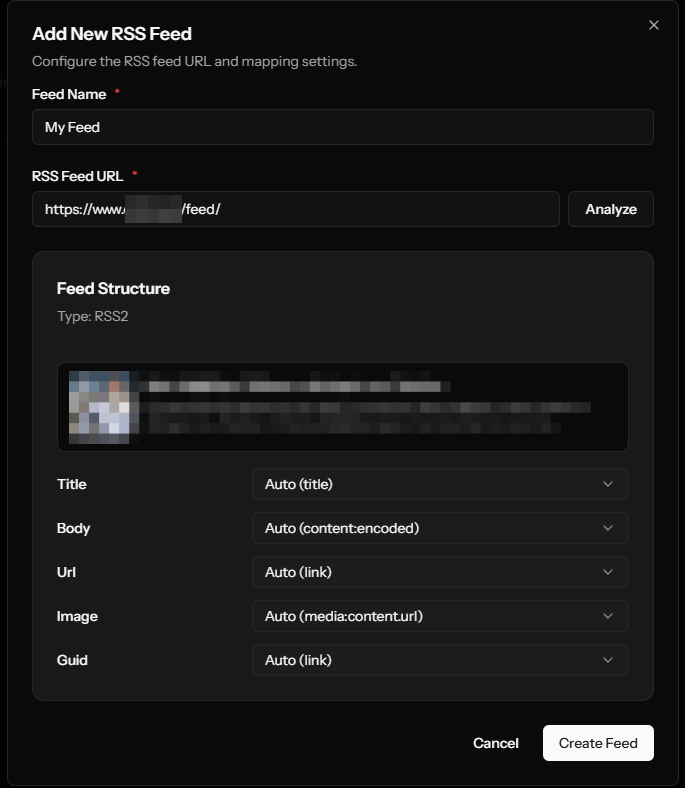
Creating an RSS Feed
- Go to your app's RSS Feeds section
- Click Add Feed
- Enter:
- Name: Display name (e.g., "Main Blog Feed")
- URL: Full RSS feed URL
Custom Node Mappings
If your RSS feed uses non-standard tags, configure custom mappings:
- Click Analyze Feed after entering the URL
- The system shows available nodes
- Map each field to the correct node:
- Title - Notification title
- Body - Notification body/description
- URL - Link when clicked
- Image - Hero image URL
- GUID - Unique identifier (for deduplication)
Configuring an RSS Trigger
Access Configuration
- Navigate to your app
- Click Triggers
- Click Configure on the RSS Feed card
Basic Settings
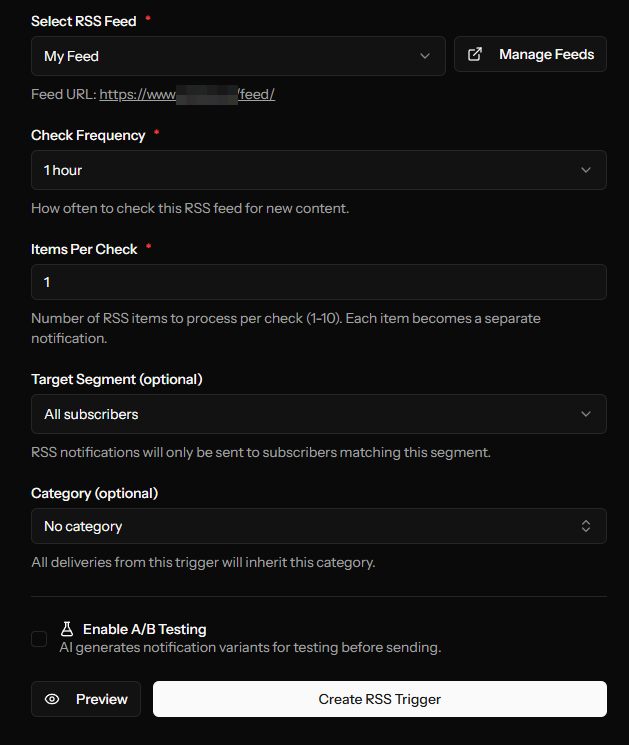
RSS Feed (Required)
Select which feed to monitor from your configured feeds.
Check Frequency
How often to check the feed for new items:
| Interval | Best For |
|---|---|
| 15 minutes | Breaking news |
| 30 minutes | Active blogs |
| 1 hour | Daily publishing |
| 2 hours | Moderate frequency |
| 6 hours | Weekly content |
| 12 hours | Occasional updates |
| 24 hours | Rare updates |
Max Items Per Check
Maximum new items to process each time (1-10).
Set this to prevent notification bursts if you publish multiple items at once.
Target Audience
Segment (Optional)
- All Subscribers - Notify everyone
- Specific Segment - Only matching subscribers
Category
Assign a category to all notifications from this trigger. Useful for:
- Filtering in deliveries list
- Matching subscriber preferences
- Performance analysis
A/B Testing Configuration
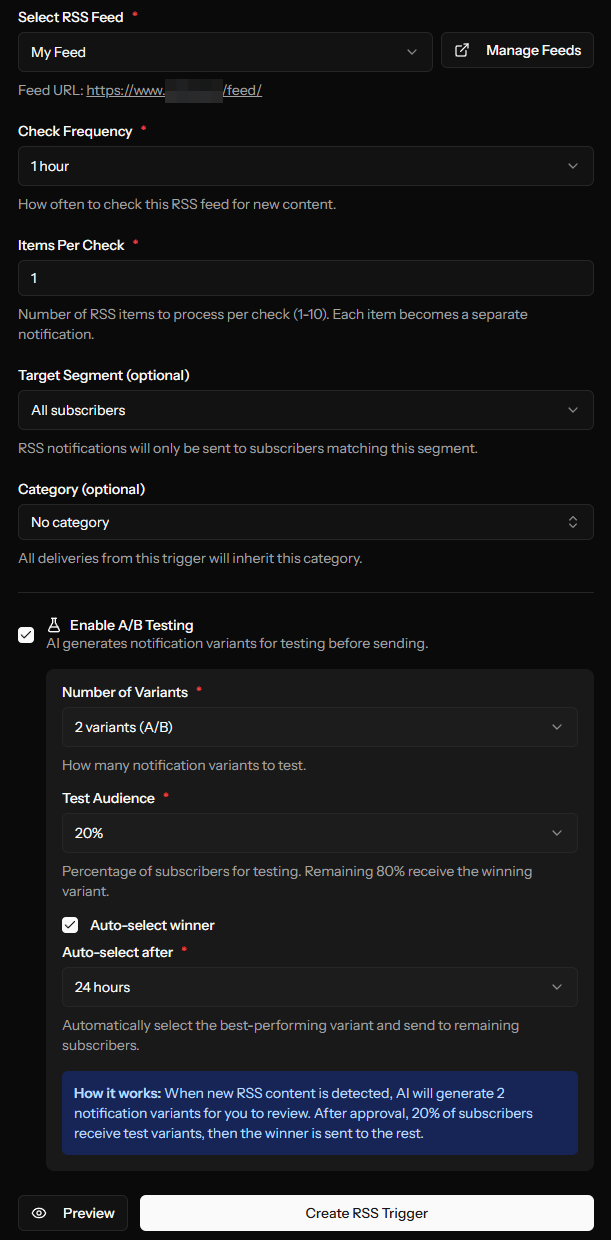
Enable A/B testing to optimize your notification content with AI-generated variants.
Enable A/B Testing
Check the Enable A/B Testing checkbox to reveal settings.
A/B Test Settings
| Setting | Description | Options |
|---|---|---|
| Number of Variants | How many versions to test | 2, 3, or 4 |
| Test Percentage | Subscribers in test phase | 10%, 15%, 20%, 25%, 30%, 40%, or 50% |
| Auto-Select Winner | Automatically pick best performer | On/Off |
| Auto-Select Delay | Hours before auto-selection | 2, 4, 6, 12, 24, 48, or 72 hours |
How RSS A/B Testing Works
New RSS Item Detected
        ↓
AI Generates Variants (2-4 versions)
        ↓
Test Enters "Pending Review" Queue
        ↓
You Review & Approve (or Discard)
        ↓
Test Starts
        ↓
Test % Subscribers Split Among Variants
        ↓
Metrics Collected (clicks, etc.)
        ↓
Winner Selected (auto or manual)
        ↓
Remaining Subscribers Get Winner
Learn more about RSS A/B Testing →
RSS Trigger Status
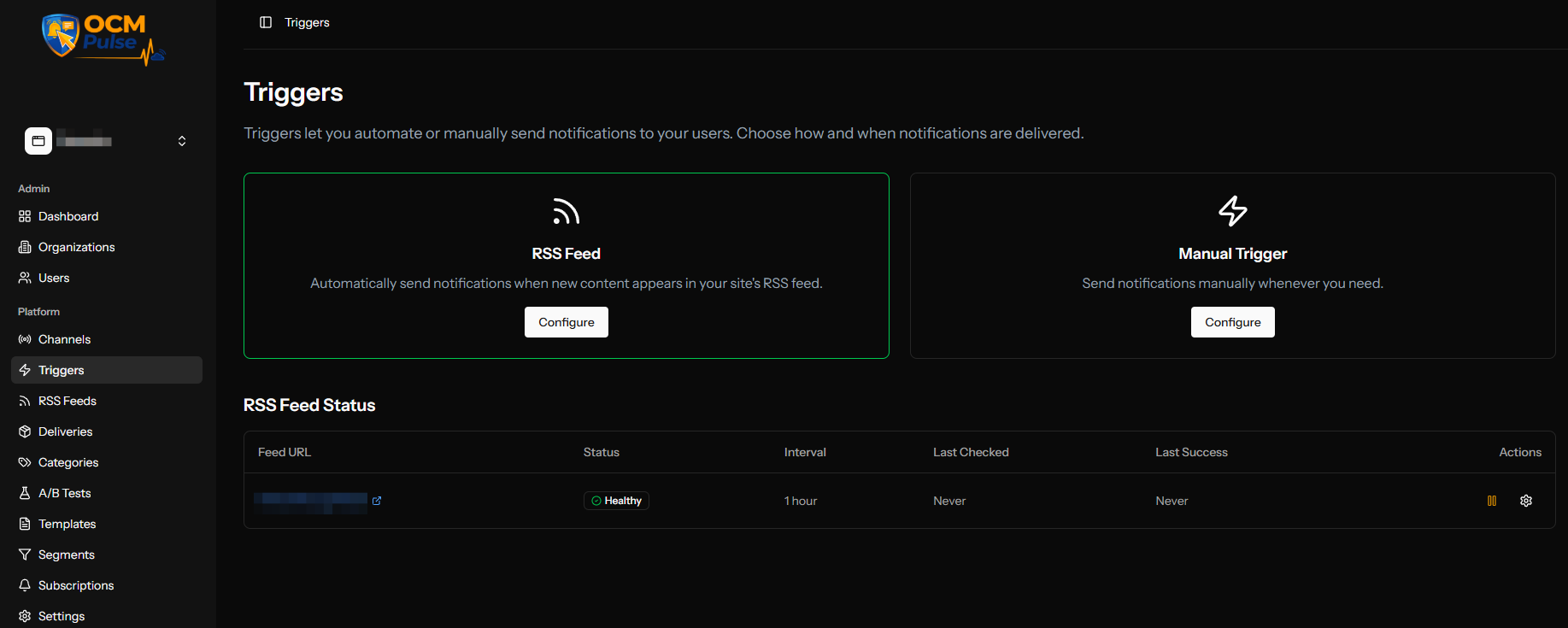
On the Triggers page, you can see the health of each RSS trigger:
Status Indicators
| Badge | Meaning |
|---|---|
| Healthy (green) | Feed is working normally |
| Warning (yellow) | Some recent failures |
| Unhealthy (red) | Multiple consecutive failures |
| Paused (gray) | Manually paused |
Health Metrics
| Metric | Description |
|---|---|
| Last Checked | When feed was last checked |
| Last Success | When content was last successfully retrieved |
| Consecutive Failures | Number of failed checks in a row |
Unhealthy Triggers
A trigger becomes unhealthy after 5 consecutive failures. When unhealthy:
- The trigger stops checking automatically
- You'll see the error message
- Fix the issue and the trigger will resume
Common causes:
- Feed URL changed
- Website is down
- Authentication required
- Feed format changed
Managing RSS Triggers
Pause/Resume
Click the pause button to temporarily stop a trigger. Useful when:
- Doing website maintenance
- Taking a content break
- Troubleshooting issues
Click play to resume.
Edit Settings
Click the settings button to modify trigger configuration.
Notification Preview
The configuration page shows a preview using the latest RSS item. This helps you:
- Verify content extraction works
- See how notifications will look
- Test custom node mappings
Tips for RSS Automation
Feed Quality
- Use feeds that include full content or good descriptions
- Ensure images are included if you want rich notifications
- Use feeds with unique GUIDs to prevent duplicates
Timing
- Match check frequency to your publishing schedule
- Consider your audience's timezone
- Avoid checking more frequently than you publish
Content
- Write RSS titles and descriptions with notifications in mind
- Keep them concise and actionable
- Include relevant images in your feed
A/B Testing
- Start with 2 variants to simplify analysis
- Use 10-20% for test percentage
- Wait at least 2-4 hours before selecting winners
Troubleshooting
Notifications Not Sending
- Check trigger status for errors
- Verify RSS feed URL is accessible
- Ensure Web Push channel is configured
- Check if any subscribers exist
Duplicate Notifications
- RSS items must have unique GUIDs
- Check custom GUID mapping if configured
- Verify your feed isn't republishing old items
Wrong Content Extracted
- Go to RSS Feeds section
- Click Analyze Feed
- Review and fix custom mappings
- Save and test with preview